
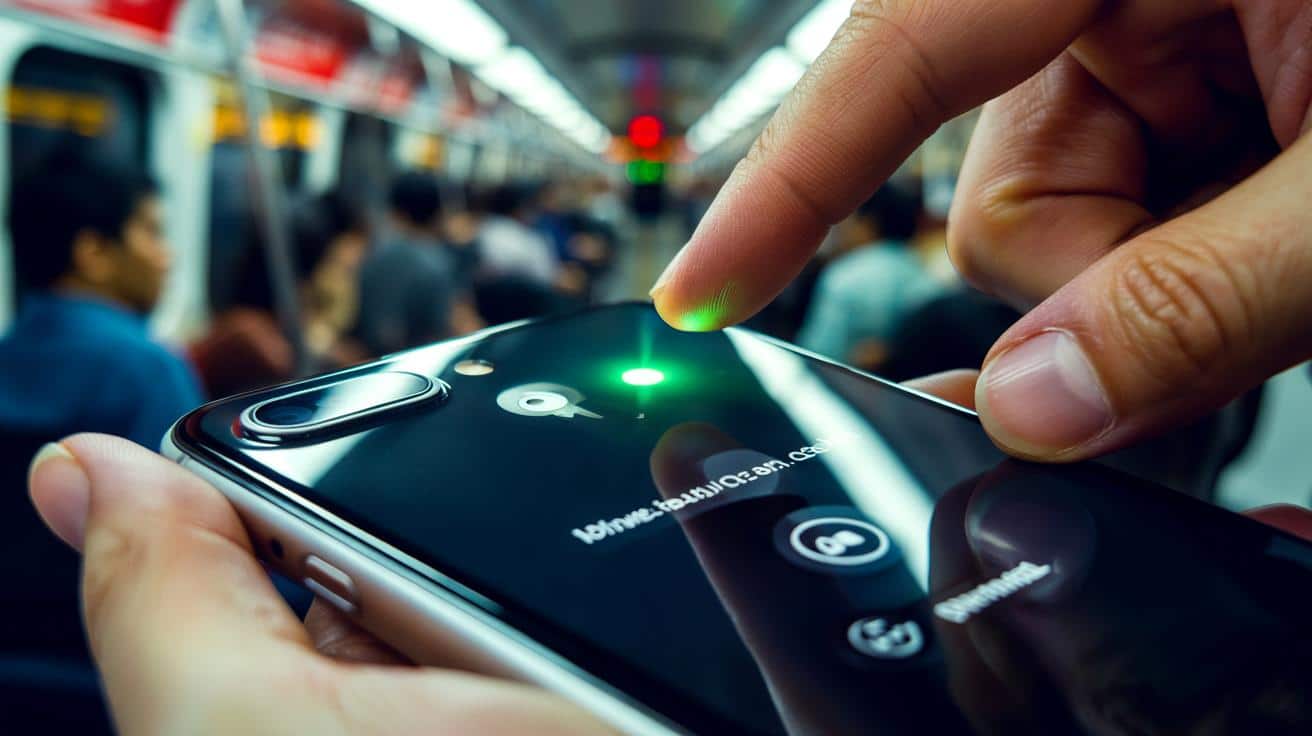
It wasn’t there a moment ago. Your camera is on. The question is simple and unsettling: who turned it on—and why?
The train was packed, elbows tucked, faces lit by screens. I pulled my phone out to photograph a timetable and saw a pinprick of green glowing near the battery icon. No FaceTime, no Instagram, no camera app open. Just the dot. In that instant, the carriage noise faded and the phone felt heavier in my hand, as if it had secrets I hadn’t agreed to. I swiped, tapped, closed apps. The dot stayed. My stomach tightened in that small, modern way, where privacy feels slippery and precious at the same time. We’ve all had that moment when a piece of tech behaves as if it knows more than you. I pushed into Control Center to find the culprit. The dot knew before I did.
That little green light means your camera is live
On iPhone, a green dot at the top of the screen tells you the camera is being accessed by an app. It’s Apple’s built-in alert—a quiet but clear signal that the lens has switched from idle glass to active eye. If you’re filming, video calling, scanning a QR code, or using any feature that needs the camera, you’ll see it. When only the microphone is in use, the dot turns orange. If both are active, you’ll still get green. Simple colours, serious meaning.
Picture this: you open a shopping app to scan a barcode, then hop to another app without closing the camera view. The green dot lingers because the camera session hasn’t ended. Another classic moment is Instagram Stories left in the background; the app may keep the camera “ready” for a beat, and the dot reminds you. A reader told me their green dot fired up at 2 a.m.—turned out their baby monitor app was open with a live preview. The dot wasn’t panic-worthy. It was useful.
Apple added these indicators from iOS 14 onward to make invisible permissions visible. The dot sits by your signal bars or Dynamic Island, depending on your model, and acts like a privacy pilot light. Swipe into Control Center and you’ll see which app last used the camera or mic, right at the top. This is not guesswork. It’s a hard, system-level signal that can’t be faked by ordinary apps, and it’s paired with your App Privacy Report, which logs sensor access over time. Quiet transparency, always on.
What to do the moment you see it
If a green dot appears and you’re not using the camera, act. First, swipe down from the top-right to open Control Center; you’ll see the app name that’s using the camera in the status line. Tap it to jump back and quit its camera feature, or just close the app. Then head to Settings > Privacy & Security > Camera and toggle off access for any app you don’t fully trust. You can also open Settings > Privacy & Security > App Privacy Report to confirm recent camera and microphone activity. It takes less than a minute to check what’s going on.
There are a few common trip-ups. FaceTime picture‑in‑picture can keep the dot glowing even when the window is tiny. So can scanning or AR features inside shopping and social apps if you’ve left them mid-flow. Don’t forget Chrome and Safari, which can access your camera via websites when you’ve granted permission. Let’s be honest: nobody checks every permission every week. Start with the apps you use daily, then the ones you barely remember installing. Small steps beat heroic audits.
Some people see the dot and leap straight to the worst-case scenario. A calm routine helps. Swipe into Control Center to see exactly which app is using it. If the name surprises you, remove its camera permission and watch the dot vanish. If it returns without reason, delete the app, update iOS, and restart your phone. A security researcher put it to me this way:
“The green indicator is a truth-teller. If it lights up, the camera is live—no exceptions. Treat it like a smoke alarm: investigate, don’t ignore.”
- Open Control Center to identify the app in one motion.
- Toggle off Settings > Privacy & Security > Camera for that app.
- Check App Privacy Report for patterns over the past 7 days.
- Update iOS, then remove any app that keeps triggering the dot without a clear reason.
Living with the dot without living in fear
Privacy on a smartphone is a balance between convenience and caution, and the green dot is a tiny mentor on that line. It rewards curiosity: the more you tap into it, the more you learn which apps use the camera, how often, and why. It also trains a habit—notice, check, adjust—without turning your relationship with your phone into a siege. Soyons honnêtes : personne ne fait vraiment ça tous les jours. You don’t need to. Make a light tune‑up part of your digital hygiene, like clearing old screenshots or unfollowing a dead group chat. **Revoking camera access rarely breaks an app permanently.** When you need it again, the app will ask, and you can grant it on your terms. The dot isn’t a threat. It’s a nudge to keep your side of the glass in focus.
| Key point | Detail | Interest for the reader |
|---|---|---|
| Green dot = camera active | Appears top-right whenever any app is using the camera; orange means microphone | Know instantly when you’re being watched or recorded |
| Identify the app fast | Open Control Center to see which app triggered the indicator | Turn anxiety into action in one gesture |
| Control permissions | Settings > Privacy & Security > Camera and App Privacy Report | Set boundaries without deleting everything |
FAQ :
- What exactly does the green dot mean on iPhone?The green dot is iOS’s indicator that your camera is in use by an app. If only the microphone is active, you’ll see an orange dot.
- How can I tell which app turned the camera on?Swipe down into Control Center; the app name using the camera or mic appears at the top. Tap it to jump straight in and stop the session.
- Can an iPhone app secretly use my camera without showing the dot?Under normal conditions, no. iOS enforces the indicator at the system level. Only rare, sophisticated exploits could bypass it, which is why keeping iOS up to date matters.
- Why does the green dot appear when I’m not taking photos?Apps with camera features—video calls, QR scanners, AR, social Stories—may keep the camera ready in the background for a moment. Close the feature, or remove the app’s camera permission.
- How do I stop apps from using the camera in the background?Go to Settings > Privacy & Security > Camera and switch off access for apps you don’t need. You can always turn it back on the next time the app asks.






Thanks for the clear walkthrough—the Control Center pointer and App Privacy Report tip were gold. I had the green dot last night and found out Safari had camera permisson from a QR site. Revoked it and boom, gone.