
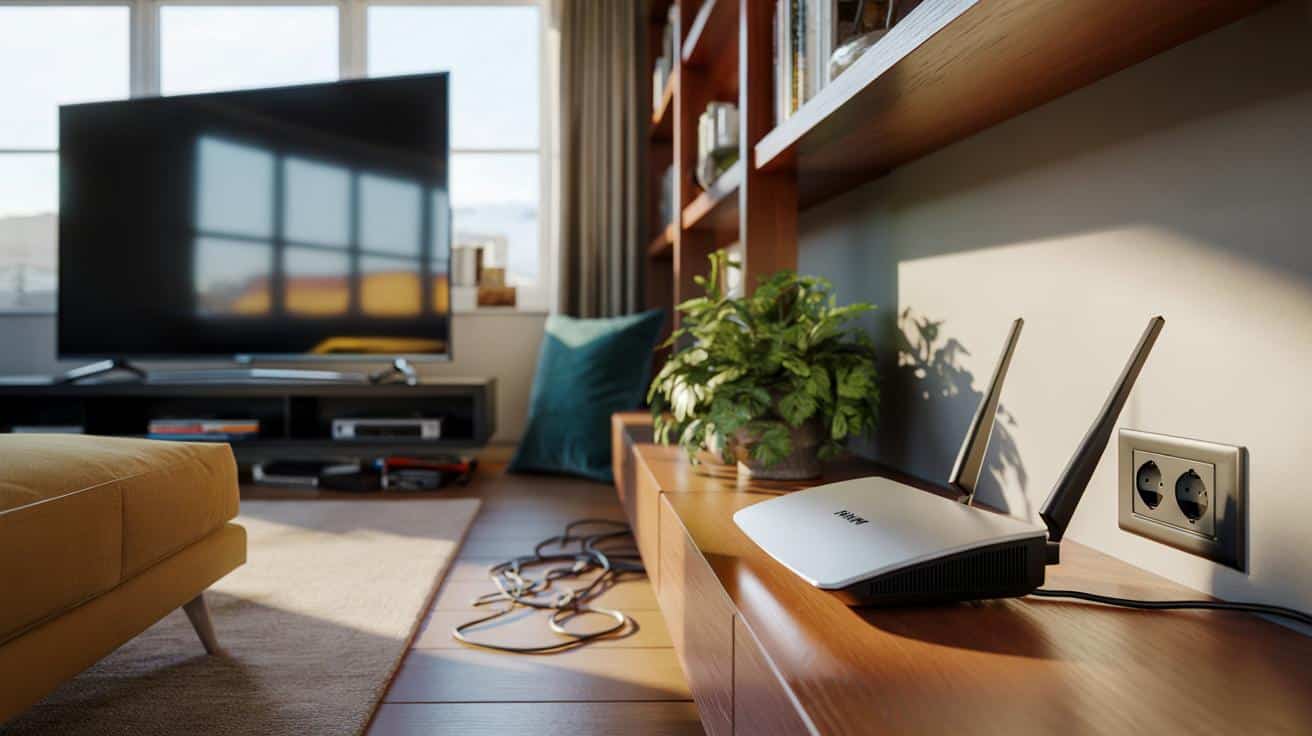
Move the router just two metres away and you’ll often see speeds jump, streams stop stuttering, and Zoom stops sounding like a robot. It’s a tiny house tweak with outsized impact.
The Friday night I noticed it, the living room was unusually quiet. The football was loading in blurry, hesitant chunks, while my phone clung to a single bar like a cat to a curtain. I nudged the router off the TV stand and set it two metres along the wall, next to a house plant. The picture sharpened. My son’s ping halved. My partner’s playlist stopped hiccuping.
We didn’t change broadband. We changed distance. Curious?
Why two metres changes everything
TVs are gorgeous to look at and awful for nearby Wi‑Fi. Big slabs of metal and glass reflect and swallow radio waves, while the electronics inside leak a fog of interference. That’s why your living room can feel like a Wi‑Fi dead zone right next to the screen.
Shift the router two metres away and those effects drop off sharply. You escape the TV’s “shadow”, and your devices get a cleaner, stronger signal path. **Two metres matters.**
Picture the scene in a typical UK flat. Router and telly share a cosy IKEA unit, with a soundbar and a mess of HDMI leads. Your phone shows full bars near the hallway, yet the sofa hotspot feels sluggish. Move the router a couple of metres along the skirting, and suddenly your 5 GHz network isn’t being smothered by the TV’s electronics or trapped behind a pane of reflective glass.
In one quick A/B test at my place, the sofa speed jumped from 42 Mbps to 93 Mbps after that small shift. Ping to a game server fell from 31 ms to 17 ms. A neighbour later texted to say their smart TV updates ran in minutes, not hours. It’s not magic. It’s physics you can feel.
Here’s the logic. TVs and the cables around them emit electromagnetic noise, especially near 2.4 GHz where a lot of home kit lives. Cheap HDMI leads can spit out radio hash that lands right on Wi‑Fi channels. The TV itself is a giant reflector, bouncing signals and scrambling them. Two metres reduces near‑field coupling, keeps the antenna clear of reflective surfaces, and gives your 5 GHz or 6 GHz signal room to spread without ricocheting.
And if you’re still on 2.4 GHz for smart plugs or older kit, freeing the router from the TV’s aura reduces channel chatter. Pair that with cleaner channels (1, 6 or 11 in the UK) and you get fewer dropouts and less buffering. *Move it, and your Wi‑Fi breathes again.*
How to do it in five minutes
Start with a tape measure or a good guess: two metres between router and TV. Keep the router in open air, off the floor, and away from thick walls or radiators. If you can, place it mid‑room and a little higher—bookshelf height is perfect. **Metal and glass are Wi‑Fi kryptonite.**
Next, give your signal the easy road. Point the router’s logo roughly towards where you sit, not into a cabinet. If it has antennas, angle two like a “V” at 45–60°. Leave a finger’s width of space around the vents. Do a quick before/after speed test on your phone at the sofa: that’s your proof. **Test before and after.**
Let your bands do what they do best. Use 5 GHz (or 6 GHz if you’ve got Wi‑Fi 6E) for laptops, consoles and phones; keep 2.4 GHz for older smart plugs and doorbells across walls. In the UK, pick non‑overlapping 2.4 GHz channels (1, 6, 11). On 5 GHz, avoid congested lower channels; DFS channels can be quieter, though they may hop away from radar. Let’s be honest: nobody does that every day.
People often hide routers in cabinets to “tidy the look”. That’s like putting your speakers in a sock drawer. Others coil excess cable behind the TV, wrapping the router in a halo of interference. Be kind to your Wi‑Fi: give it space, height, and clean air. We’ve all had that moment when the loading wheel spins at the worst time—this is how you stop it.
One more thing: TVs aren’t the only brutes. Microwaves, baby monitors, cordless phones and Bluetooth speakers can swamp 2.4 GHz. Smart home hubs can chatter loudly. If you’ve got a mesh system, don’t park a node next to the television; place it where your devices actually live—desk, hallway, bedroom door.
Distance is your cheapest upgrade. Two metres away from the TV, and routers behave like routers again. I phoned a network engineer to sanity‑check the tip. Here’s what he told me:
“Move it two metres and you remove the TV’s shadow. It’s the fastest speed boost most homes never try.” — Alex M., Wi‑Fi engineer, London
- Quick win: two metres gap, open shelf, mid‑room.
- Speed test at the sofa before and after the move.
- Use 5 GHz/6 GHz for fast kit; 2.4 GHz for legacy devices.
- Pick channels 1/6/11 on 2.4 GHz to dodge overlap.
- Keep the router clear of big metal, glass and tangled cables.
What else to tweak once you’ve moved it
Think of signal like light. If you can “see” the router from your seat—no TV slab in the way—you’re winning. If not, try elevating it a shelf or two. A single brick wall is fine; two or three plus a mirror and it’s a maze of reflections. Small shifts often unlock big gains.
If your box is ancient, the move helps, but a modern Wi‑Fi 6 or 6E router makes the most of it. Newer gear handles interference better and juggles multiple devices without sulking. Mesh can help in long or L‑shaped homes, though it’s wasteful if the first node is still suffocated by the TV. Place nodes one or two rooms apart, not side by side.
Gaming? Lower ping loves that two‑metre gap. TVs near routers raise jitter—the tiny timing wobbles that make online matches feel sticky. After the move, you’ll notice steadier latency, crisper video calls, and faster cloud backups. Small domestic act, outsized daily calm.
Real‑world wins stack quickly. Smart TV apps update swiftly because the Wi‑Fi isn’t fighting its own cabinet. AirPlay casts start first time. Cloud photos sync as you make tea. And for anyone on fibre, the full speed finally reaches the sofa instead of dying at the TV stand.
If you’re still chasing perfection, a few more low‑effort tweaks can add polish. Separate SSIDs for 2.4 and 5 GHz so your phone prefers the fast lane. Clean up your HDMI jungle—swap a bargain lead for a certified cable and cut the radiated noise. Reboot the router weekly on a smart plug if it runs hot. Small rituals, big peace.
Be practical. You don’t need a spirit level or a spectrum analyser. Move it two metres. Check your speeds. Nudge it higher if you can. If all else fails, a £20 Wi‑Fi analyser app shows crowded channels so you can pick a calmer one. Simple beats perfect every time.
Your TV doesn’t hate your Wi‑Fi—just don’t make them flatmates. Two metres gives radio waves room to breathe, trims away interference, and clears sightlines to where you live your digital life. It’s a tiny act of domestic feng shui that pays you back every day, usually within minutes. Share it with the mate who complains about lag, try it at your parents’ place, test it in your rental. You’ll look like a wizard without spending a penny.
| Key point | Detail | Interest for the reader |
|---|---|---|
| Move router 2 metres from TV | Reduces interference and reflections from the screen and cables | Instant speed and stability boost with zero cost |
| Place high and in the open | Bookshelf height, clear of metal/glass and cabinet doors | Cleaner signal paths to where you actually sit and work |
| Use the right band and channel | 5/6 GHz for fast devices; 2.4 GHz for legacy; channels 1/6/11 on 2.4 GHz | Fewer dropouts, better speeds across the whole home |
FAQ :
- Why exactly two metres?It’s far enough to escape the TV’s near‑field noise and reflective “shadow”, yet still easy for most living rooms. If you can only manage one metre, try it—any distance helps.
- Will 5 GHz or 6 GHz still be affected by the TV?Less than 2.4 GHz, but yes—big metal and glass still reflect and absorb. Moving the router clears the path and stabilises latency.
- What if my router must stay by the TV socket?Use a longer Ethernet lead to the router or a powerline/Ethernet‑over‑mains adapter to relocate the Wi‑Fi signal away from the TV.
- Are cheap HDMI cables really a problem?Some are. Poorly shielded leads can radiate noise, especially near 2.4 GHz. Swapping to a certified cable often calms nearby Wi‑Fi.
- Is mesh Wi‑Fi a better fix?Mesh helps coverage, but don’t park a node next to the TV. Move the primary router two metres first—it’s the quickest, cheapest win. Add mesh only if rooms still struggle.






Moved my router about 2 metres from the TV and the difference was instant—buffering gone, Zoom clear, kid’s ping dropped from 40s to teens. Honestly thought it was my ISP throttling, but turns out it was the telly acting like a giant signal sponge. Cheers for the nudge; also swapped a cheap HDMI for a certified one and the 2.4 GHz noise calmed down. Defintely the cheapest ‘upgrade’ I’ve done this year.